Open the OpenAI configuration
1
Go to Integrations
Navigate to app.atcyrus.com/settings/integrations.
2
Open the configuration modal
Find the OpenAI tile, click the dropdown on the right side of the tile, and select Configure.
3
Choose your authentication method
At the top of the configuration modal you’ll see a tab selector — pick API Key or ChatGPT/Codex Sub depending on how you’d like to authenticate.
Supported models
Cyrus supports OpenAI’s Codex models. Set a model on a per-issue basis with a Linear label or a[model=...] description tag — see Default Model Provider for syntax.
Cyrus accepts any model name matching
gpt-*-codex or gpt-*, so newer Codex models can be selected by name as soon as OpenAI releases them.
Example — pin a specific Codex model on one issue:
codex + gpt-5.3-codex.
API key setup
1
Sign in to OpenAI
Go to platform.openai.com and sign in with your OpenAI account. If you don’t have one, create a free account first.
2
Open the API Keys page
Navigate to API keys in the left sidebar, or go directly to platform.openai.com/api-keys.
3
Create a new key
Click Create new secret key. Give it a descriptive name like
cyrus so you can identify it later.4
Copy the key
Your new key will be displayed once. Copy it immediately and store it somewhere safe — you won’t be able to see it again.
5
Paste it into Cyrus
Back in the Cyrus OpenAI configuration modal (with the API Key tab selected), paste your key and save.
Add billing
OpenAI API keys require a billing method to work. If you haven’t already:- Go to platform.openai.com/settings/organization/billing
- Add a payment method
- Optionally set a usage limit to control costs
ChatGPT/Codex subscription setup
If you have an active ChatGPT or Codex subscription, you can use that instead of a separate API key. The setup differs depending on whether you use a self-hosted or cloud-hosted runtime.OpenAI’s Terms of Service are friendly towards this type of usage — using your subscription with tools like Cyrus is permitted.
Self-hosted runtime
When running on a self-hosted runtime, you need to authenticate Codex manually on the device:- SSH into (or open a terminal on) the machine where Cyrus runs
- Switch to the same user account that the
cyruscommand-line process runs under - Run:
- Follow the prompts to sign in with your OpenAI account
- Back in the Cyrus OpenAI configuration modal (with the ChatGPT/Codex Sub tab selected), click I have authenticated to let Cyrus know you’ve completed the login
Cyrus doesn’t verify the authentication itself — clicking “I have authenticated” simply enables the provider. Make sure
codex login completed successfully before confirming.Cloud-hosted runtime
When running on a cloud-hosted runtime, you’ll complete a device authorization flow through the Cyrus UI:1
Enable device code authorization on OpenAI
Before starting, make sure device code auth is enabled on your OpenAI account. Go to chatgpt.com/#settings/Security, scroll to the bottom, and toggle on Enable device code authorization for Codex.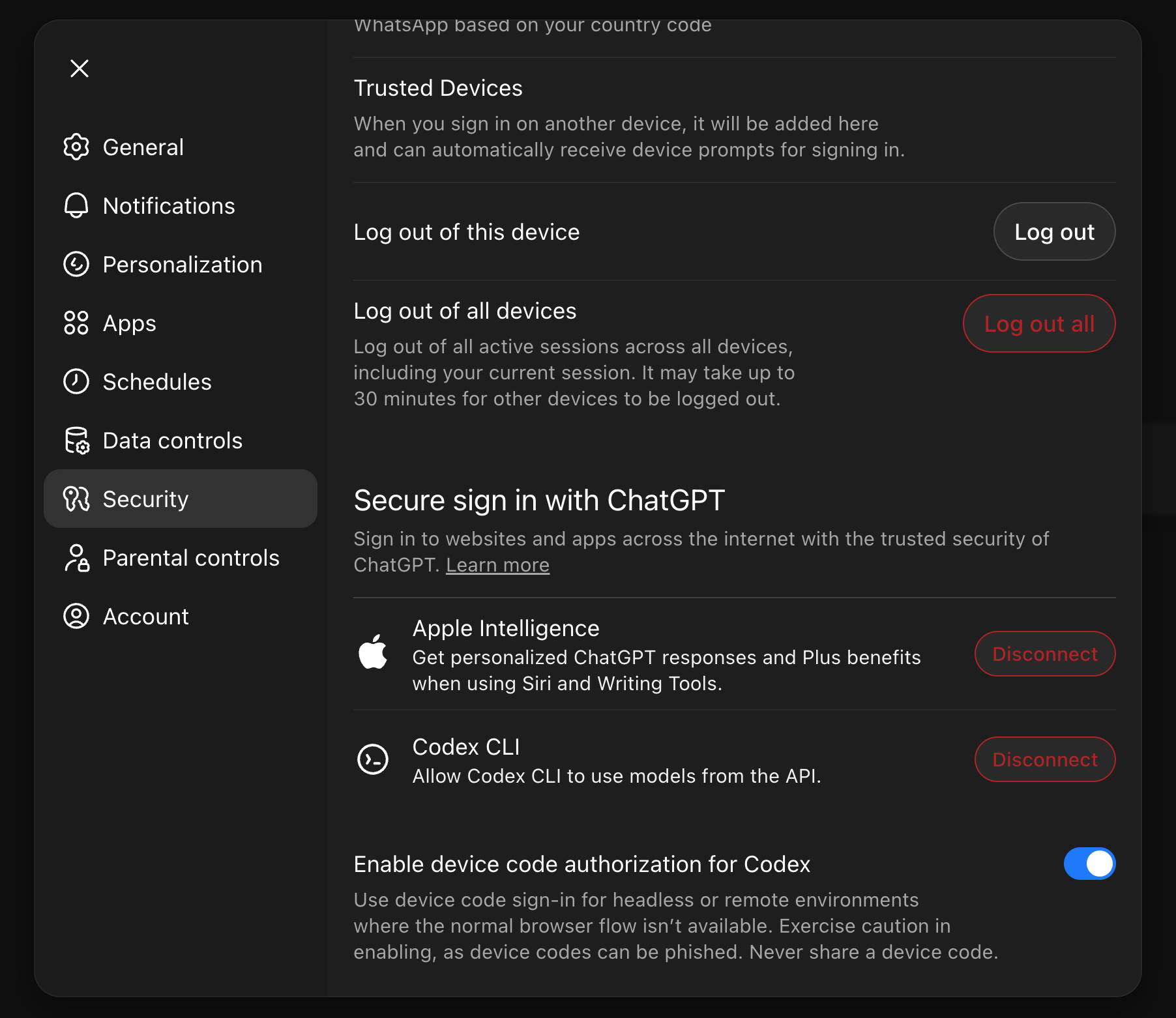
2
Start the flow in Cyrus
In the Cyrus OpenAI configuration modal (with the ChatGPT/Codex Sub tab selected), click Authenticate Codex.
3
Copy the device code
Cyrus will display a 9-digit code. Copy it to your clipboard.
4
Authorize on OpenAI
Click Open authentication page — this will launch OpenAI’s device authorization page. Paste the code when prompted.If you haven’t enabled device code authorization yet, you may see a link to enable it. Follow that link first (or use the direct link from Step 1), then return and complete the authorization.
Troubleshooting
“Invalid API key” error- Double-check you copied the full key (it starts with
sk-) - Make sure the key hasn’t been revoked in the OpenAI dashboard
- Verify you have billing set up at platform.openai.com/settings/organization/billing
- Check that you haven’t exceeded your usage limit
- Ensure you’ve enabled device code auth at chatgpt.com/#settings/Security
- Try generating a new code — device codes expire after a few minutes
Next steps
To make OpenAI the provider Cyrus uses for every issue, see Default Model Provider.
Cyrus Community
Get support on Discord