

For file-based MCP configuration using
.mcp.json in your repository, see the MCP Servers guide. The dashboard approach described here and the file-based approach work together — MCPs added through either method are available to Cyrus during sessions.Accessing custom MCPs
Navigate to the Integrations page and select the Custom tab to view and manage your MCP servers.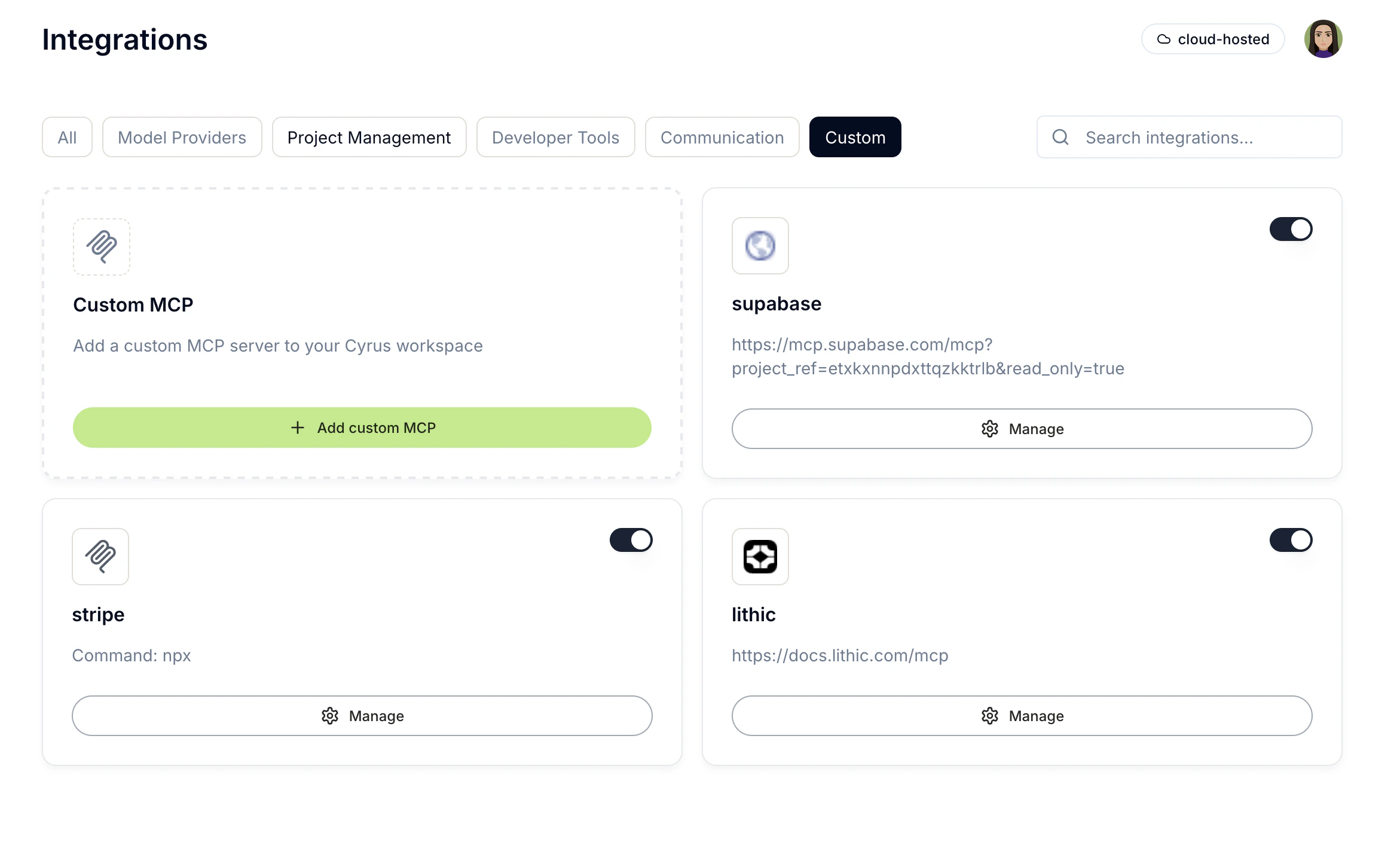
- Add new custom MCP servers
- Enable or disable existing MCPs using the toggle switch
- Manage MCP settings, allowed tools, or remove MCPs
Adding a custom MCP
Click the + Add custom MCP button on the Custom MCP card. You’ll see a dialog with two configuration modes: URL and Command.URL-based MCP
Use this for MCP servers accessible over HTTP/HTTPS (remote servers, hosted services).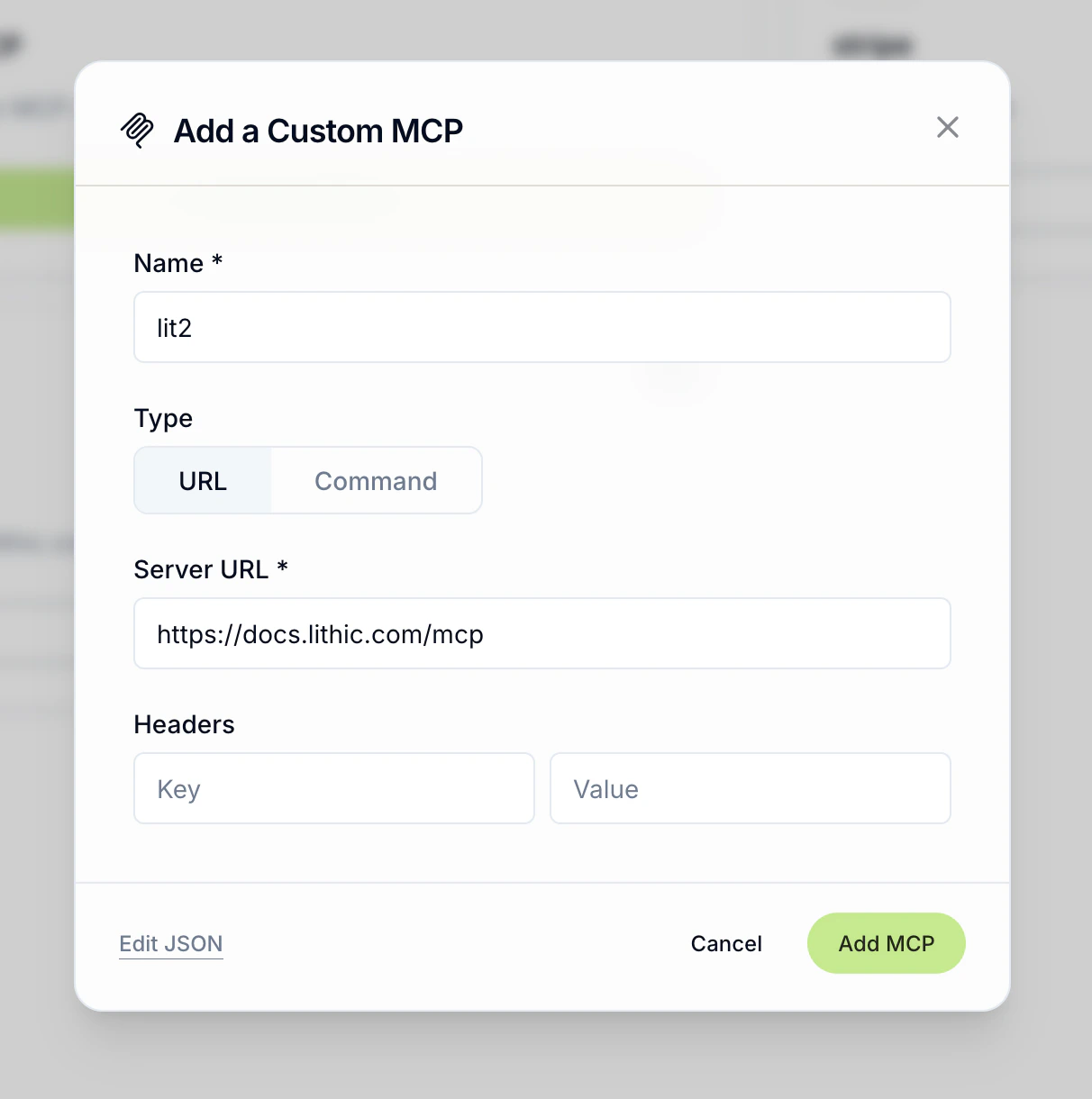
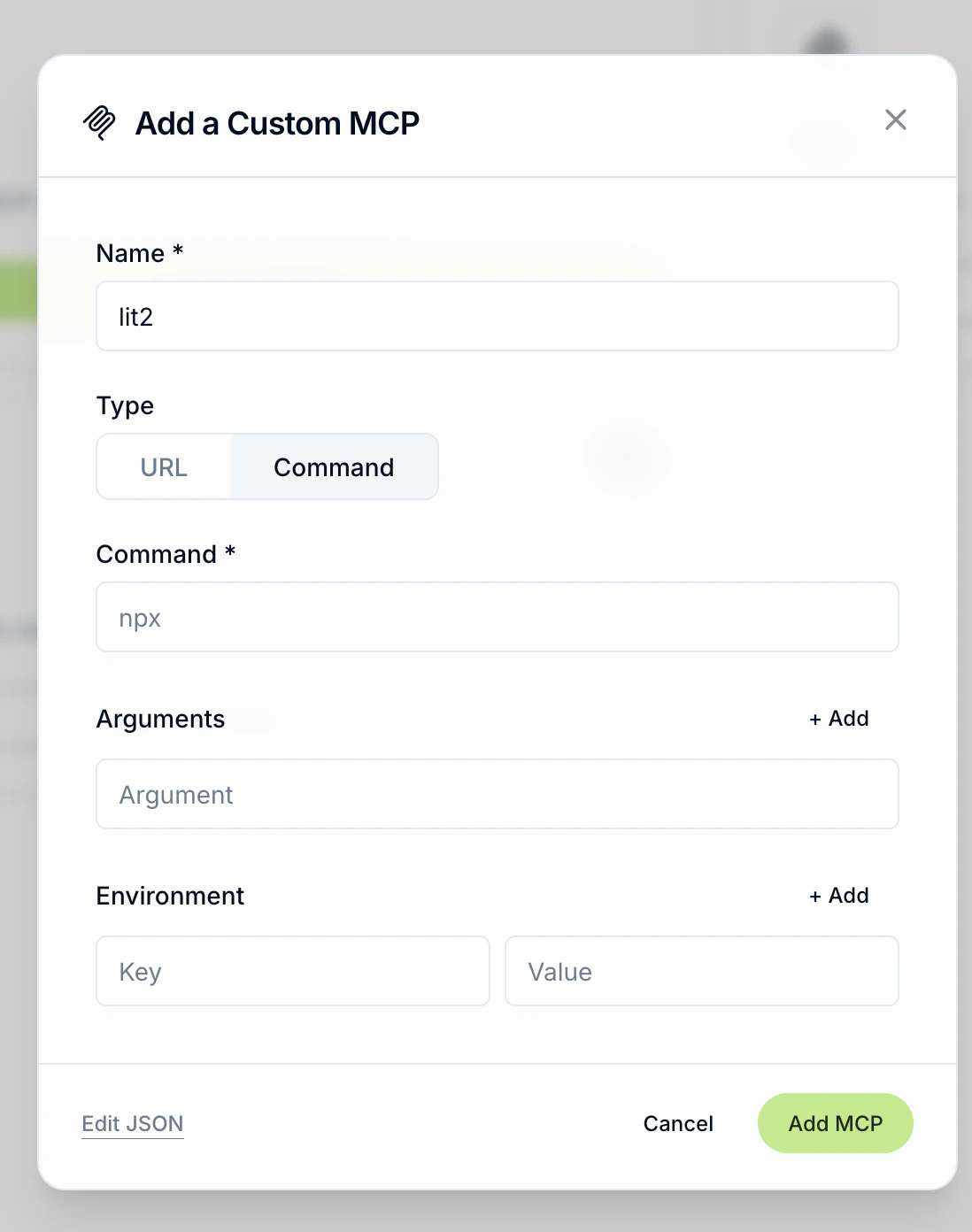
Command-based MCP
Use this for MCP servers that run as local processes (stdio-based servers started vianpx, node, etc.).
JSON editor
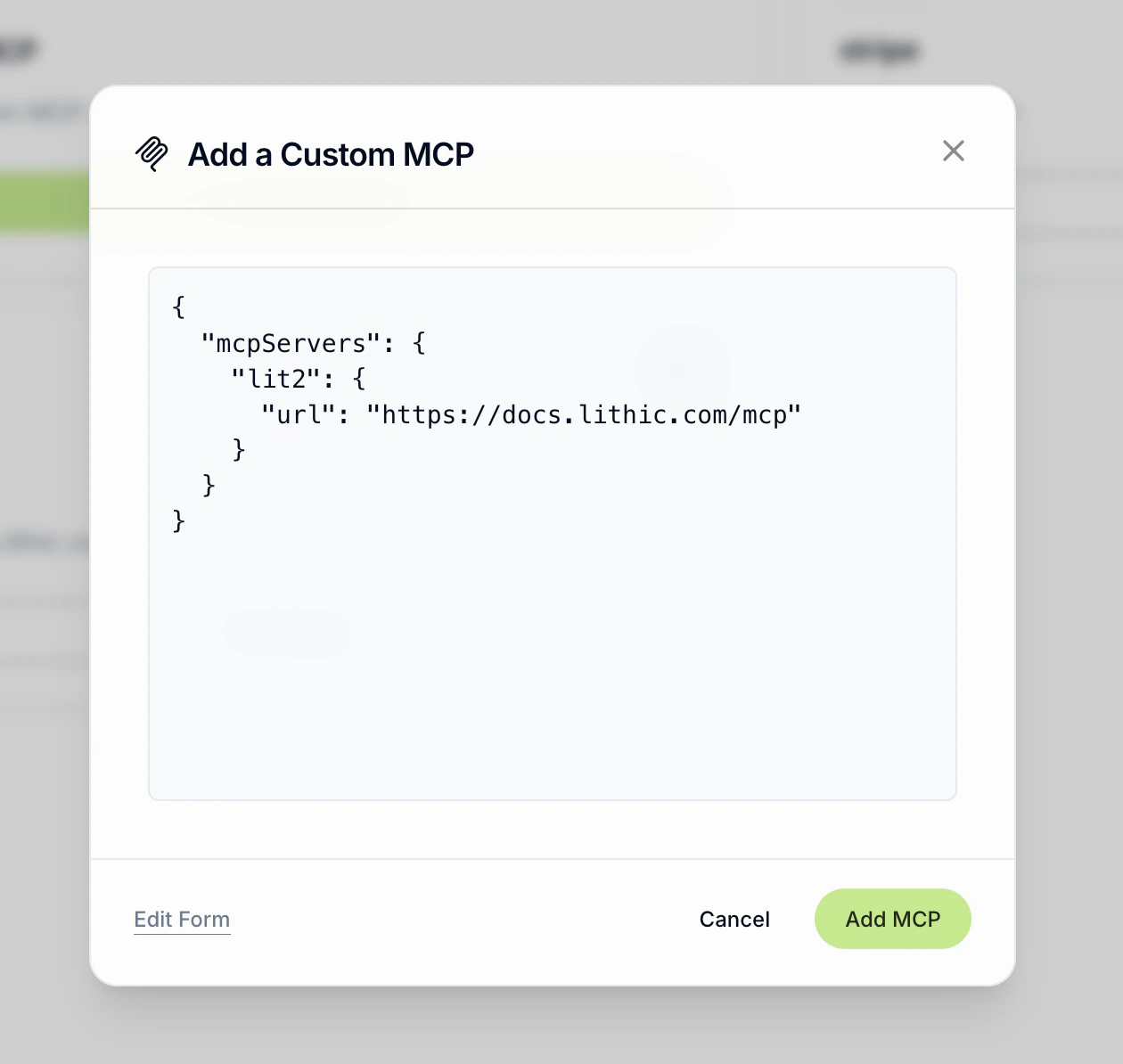
For advanced configurations, click Edit JSON at the bottom of the dialog to switch to a raw JSON editor. This uses the samemcpServers format as .mcp.json files.
Managing MCPs
Each configured MCP server has a Manage button with three options: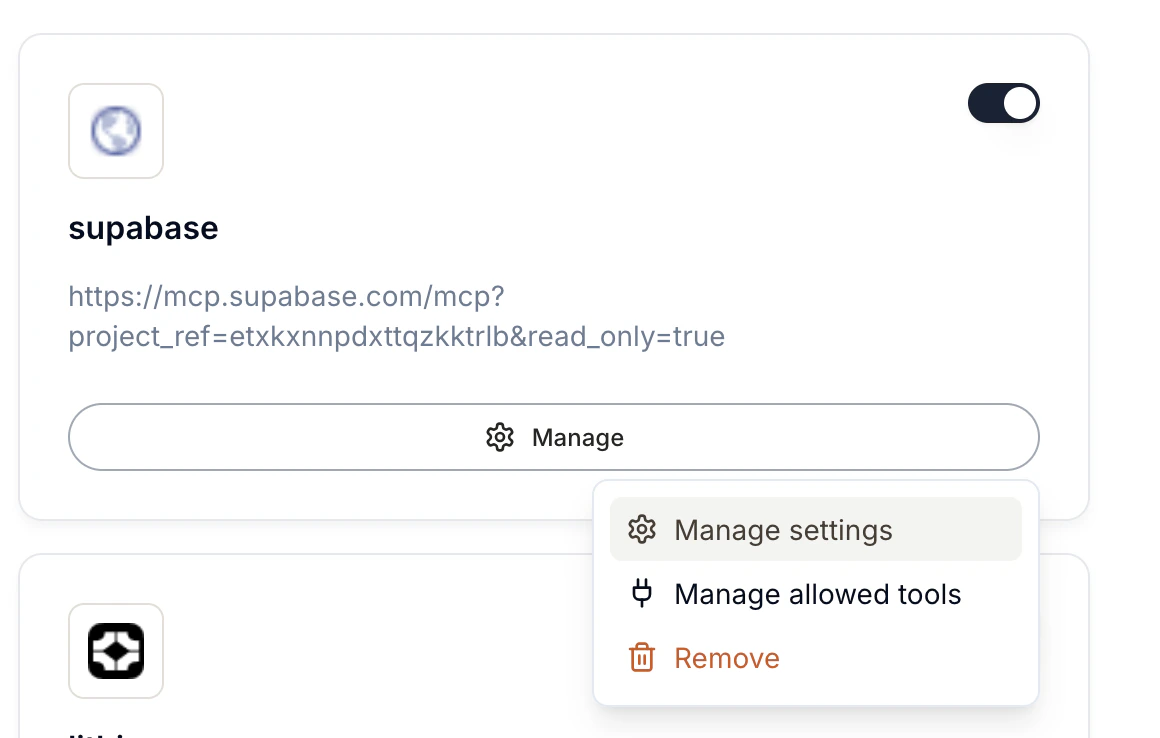
Manage settings
Edit the MCP server’s configuration — update the URL, command, arguments, environment variables, or headers.Manage allowed tools
Takes you to Allowed Tools per Platform (/settings/tools), where the chosen MCP’s tools live as mcp__<slug>__<tool> entries on the Slack / Linear / GitHub tabs. Toggling them on or off there is what enables or disables them for each surface — it is the single source of truth.
The initial tool selection happens inline when you first connect the MCP (under Add Custom MCP). After that, the dropdown link is just a shortcut to the page where you can adjust the gating per platform.
Remove
Permanently removes the MCP server from your workspace. This does not affect any.mcp.json files in your repositories.
Enabling and disabling MCPs
Enable/disable happens on Allowed Tools per Platform (/settings/tools), not on this page. Toggle individual tools — or the whole MCP server — on or off per surface (Slack, Linear, GitHub) and per repository override. A custom MCP server appearing in the MCP Servers section of every tab is the normal state; whether it’s actually used in a given session is determined by which of its tools are enabled on that surface.
To remove an MCP server entirely, use Manage > Remove here on /integrations.
Examples
Here are some common MCP servers you might add:Many services now offer official MCP servers. Check your service provider’s documentation to see if they support MCP.
Dashboard vs file-based configuration
Cyrus supports two ways to configure MCP servers:
Both methods work together. MCPs configured through the dashboard and through
.mcp.json files are merged and available during agent sessions.
For detailed guidance on file-based MCP configuration, see the MCP Servers guide.
Troubleshooting
MCP server tools aren’t being called- Verify the MCP is enabled (toggle is on)
- Check that the tools you need are allowed on the platform you’re using under Allowed Tools per Platform (
/settings/tools) - For command-based MCPs, ensure the command and arguments are correct
- For URL-based MCPs, verify the server URL is accessible
- For URL-based servers, confirm the URL is correct and the server is running
- For command-based servers, ensure the command is available in the runtime environment
- Check that any required environment variables or headers are configured
- Cyrus only calls MCP tools when relevant to the task. Include guidance in your Linear issue description (e.g., “Use Stripe to check recent charges”)
- Verify the tools are allowed — disabled tools won’t appear in Cyrus’s available tool list

Cyrus Community
Get support and ask questions on Discord