> ## Documentation Index
> Fetch the complete documentation index at: https://atcyrus.com/docs/llms.txt
> Use this file to discover all available pages before exploring further.
# Runtimes
Cyrus offers two runtime modes that determine where your Cyrus instance runs. Which runtimes are available, and whether you can switch between them, depends on your plan (see [Runtime availability by plan](#runtime-availability-by-plan) below).
## Runtime types
### Self-hosted
With self-hosted runtime, Cyrus runs locally on your machine. This gives you full control over the runtime environment.
**Benefits:**
* Full control over the runtime environment
* Data stays on your machine
* Works offline once started
**Requirements:**
* Local Cyrus CLI installation
* Must run the CLI to enable agent functionality
### Cloud-hosted
With cloud-hosted runtime, Cyrus runs on our managed infrastructure. This is the simplest option as there's nothing to install or maintain on your end.
**Benefits:**
* No local installation required
* Automatic updates and maintenance
* Always available without manual startup
## Runtime availability by plan
Not every plan can run on every runtime. The **Team** plan can run either self-hosted or cloud-hosted (and can switch between them); the **Pro** plan is self-hosted only. Cloud-hosted runtime is available only on the Team plan.
| Plan | Self-hosted | Cloud-hosted | Switching |
| -------------- | ----------- | ------------ | -------------------------------------------------------------------------------------- |
| **Pro** | ✅ | ❌ | Self-hosted only. To run in the cloud, [upgrade to Team](#upgrading-to-the-team-plan). |
| **Team** | ✅ | ✅ | Switch freely between self-hosted and cloud-hosted. |
| **Enterprise** | Managed | Managed | Fixed runtime configuration managed by your organization. |
**Pro is self-hosted only.** Cloud-hosted runtime is no longer offered at the Pro tier. A Pro plan cannot switch to cloud-hosted. If you need cloud hosting, [upgrade to the Team plan](#upgrading-to-the-team-plan) first.
### Upgrading to the Team plan
To move from Pro (self-hosted) to cloud-hosted, upgrade to the Team plan. Open the **Usage** section of your [workspace settings](https://app.atcyrus.com/settings) and choose to upgrade. The Team plan unlocks cloud-hosted runtime, after which you can switch runtimes from the dashboard at any time.
## How to switch runtimes
On the **Team** plan, admin users can switch their workspace's runtime at any time. The runtime badge is located in the top-right header, next to the user avatar.
On the **Pro** plan the runtime is fixed to self-hosted, so the switch-to-cloud option is not available. [Upgrade to Team](#upgrading-to-the-team-plan) to enable cloud-hosted runtime.
### Step 1: Locate the runtime badge
In the dashboard header, you'll see the current runtime displayed as a badge next to your avatar. It will show either "self-hosted" or "cloud-hosted" with an icon.
 ### Step 2: Open the switch dialog
Click on the runtime badge to open the runtime switch dialog. This dialog explains what will happen when you switch runtimes.
### Step 2: Open the switch dialog
Click on the runtime badge to open the runtime switch dialog. This dialog explains what will happen when you switch runtimes.
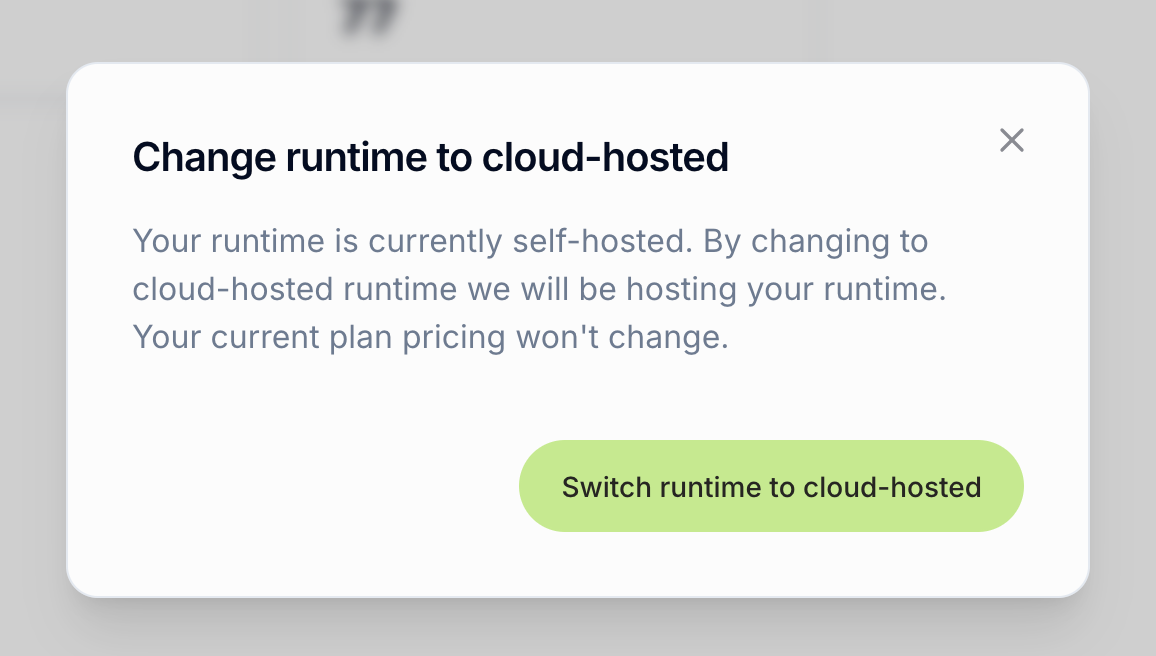 The dialog will display:
* Your current runtime
* What will change after switching
* Confirmation that your plan pricing won't change
### Step 3: Confirm the switch
After clicking to proceed, you'll see a confirmation dialog with an important warning.
Switching runtimes is a significant action. The context of all currently active issues will be lost, and agents will need to rebuild their understanding of ongoing work. This action cannot be undone without losing progress on active issues.
Click the confirmation button to proceed with the switch.
### After switching
Depending on your target runtime:
* **To Cloud-Hosted:** Your runtime will be provisioned on our infrastructure. This typically takes a few moments.
* **To Self-Hosted:** You'll be guided through installing and authenticating the Cyrus CLI on your machine.
## Who can switch runtimes
* **Admin users** can switch runtimes for their workspace
* **Team plans** can switch freely between self-hosted and cloud-hosted runtime
* **Pro plans** are self-hosted only and cannot switch to cloud-hosted. [Upgrade to Team](#upgrading-to-the-team-plan) for cloud hosting
* **Enterprise plans** have fixed runtime configurations managed by your organization
## Resubscribing
If your subscription has lapsed and you resubscribe, the available options match the current [pricing page](https://www.atcyrus.com/pricing): **Pro is self-hosted**, and cloud-hosted runtime comes with the **Team** plan. Cloud-hosted is no longer offered at the Pro tier, so a previously cloud-hosted Pro account that resubscribes will need to [choose the **Team** plan](#upgrading-to-the-team-plan) to stay on cloud-hosted, or continue on **Pro** as self-hosted.
## Important notes
**Plan pricing stays the same** - Switching runtimes does not affect your subscription or billing.
1. **Active work is affected** - All currently active issues will lose their context when switching
2. **Local Cyrus must be running** - For self-hosted runtime, your local Cyrus instance must be running for agents to function
The dialog will display:
* Your current runtime
* What will change after switching
* Confirmation that your plan pricing won't change
### Step 3: Confirm the switch
After clicking to proceed, you'll see a confirmation dialog with an important warning.
Switching runtimes is a significant action. The context of all currently active issues will be lost, and agents will need to rebuild their understanding of ongoing work. This action cannot be undone without losing progress on active issues.
Click the confirmation button to proceed with the switch.
### After switching
Depending on your target runtime:
* **To Cloud-Hosted:** Your runtime will be provisioned on our infrastructure. This typically takes a few moments.
* **To Self-Hosted:** You'll be guided through installing and authenticating the Cyrus CLI on your machine.
## Who can switch runtimes
* **Admin users** can switch runtimes for their workspace
* **Team plans** can switch freely between self-hosted and cloud-hosted runtime
* **Pro plans** are self-hosted only and cannot switch to cloud-hosted. [Upgrade to Team](#upgrading-to-the-team-plan) for cloud hosting
* **Enterprise plans** have fixed runtime configurations managed by your organization
## Resubscribing
If your subscription has lapsed and you resubscribe, the available options match the current [pricing page](https://www.atcyrus.com/pricing): **Pro is self-hosted**, and cloud-hosted runtime comes with the **Team** plan. Cloud-hosted is no longer offered at the Pro tier, so a previously cloud-hosted Pro account that resubscribes will need to [choose the **Team** plan](#upgrading-to-the-team-plan) to stay on cloud-hosted, or continue on **Pro** as self-hosted.
## Important notes
**Plan pricing stays the same** - Switching runtimes does not affect your subscription or billing.
1. **Active work is affected** - All currently active issues will lose their context when switching
2. **Local Cyrus must be running** - For self-hosted runtime, your local Cyrus instance must be running for agents to function